A table of contents for a project is a list of the headings in your document, each with the page it starts on. The reliable way to make one in Word is to apply real Heading 1 and Heading 2 styles to your chapter and section headings, then insert the table from References > Table of Contents and update it before you submit. Typing it by hand breaks the first time a page moves.
UniDraft organises your confirmed work, checked sources and supervisor instructions into an editable Word project document, with the headings built as real heading styles so you can generate a page-numbered contents from them in Word. Start your project document with UniDraft, then use this guide to check the contents, lists and numbering in the final file.
What must a project table of contents contain?
It depends on your institution, so start with the written rule. Two Nigerian examples show how much the wording varies.
- The Nnamdi Azikiwe University manual of style for postgraduate projects, theses and dissertations (issued by its School of Postgraduate Studies) puts the table of contents after the abstract, followed by lists of tables, figures, plates, abbreviations and symbols where they apply. It asks for the contents to follow the structure of the write-up, to include page numbers, and to carry only the first four heading levels.
- Other departments ask for chapters and sections only, or want every preliminary page listed. The same manual's four levels would be a lot for a short undergraduate report.
That is a postgraduate document, so do not treat its numbers as your department's rule. What is common is the shape: the contents is a map of your headings, in order, with pages. Typical entries are the preliminary pages that come after it, each chapter, the main sections inside each chapter, References and any appendices. Whether the preliminary pages that come before the contents (certification, dedication, abstract) are listed is a departmental choice. Your handbook, then your supervisor's written instruction, settle it. An older student's project is background, not proof the rule has not changed.
If you are still assembling the surrounding front matter, our guide to formatting a final year project for a Nigerian university covers the whole skeleton, and the abstract guide covers the page that usually sits just before your contents.
How Word builds a contents page from heading styles
Word does not read your document and guess what a heading is. It collects paragraphs that carry a heading style, and ignores everything else.
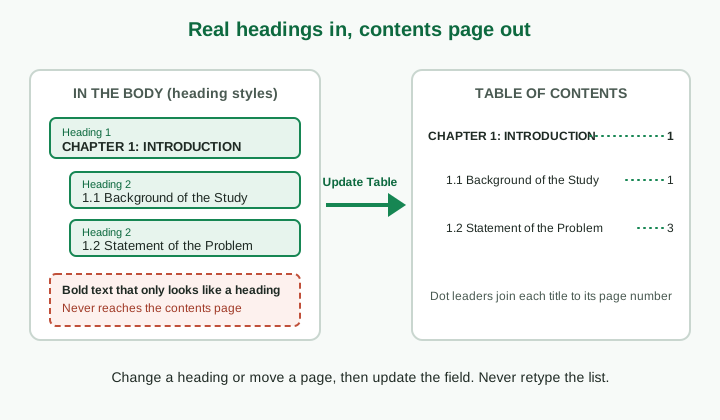
The consequence is practical. Text that is bold, centred and in capitals but has not been given a heading style looks like a heading to you and is invisible to Word. Texas Tech's guidance for thesis writers makes the same point: text that is only styled to look like a heading is not recognised as one and stays out of the contents. The same guide says heading levels should not skip, for example going from Heading 1 straight to Heading 3.
A sensible mapping for a project is:
| Document element | Style | Example |
|---|---|---|
| Chapter title | Heading 1 | CHAPTER 2: LITERATURE REVIEW |
| Main section | Heading 2 | 2.1 Conceptual Review |
| Sub-section (only if your department lists it) | Heading 3 | 2.1.1 Definition of the Term |
| Body text | Normal | Everything else |
Apply a style by clicking in the heading and choosing it from the Styles gallery on the Home tab. If you want the headings to look different, change the style, not individual headings: format one heading the way you want, right-click its style in the Styles pane and choose Update Heading to Match Selection. Every heading at that level changes at once, and the contents follows.
Step by step: insert the table of contents
- Style every chapter title as Heading 1 and every main section as Heading 2 first. The contents can only list what is already styled.
- Place the cursor on the page where the contents should sit.
- Go to References > Table of Contents and choose one of the built-in styles from the gallery. This builds the table from the headings and includes page numbers.
- If you need a different number of levels, choose Custom Table of Contents and change Show levels. The built-in default does not always match what a department asks for, so check the levels shown against what you styled.
- Check the result against the body: every chapter present, in order, with the same wording as the heading on the page.
Type the page title ("TABLE OF CONTENTS") as ordinary centred text. Do not give it a heading style. If it is Heading 1, Word will add the contents to the contents.
Updating the table of contents
A generated contents is a field, which means it is a snapshot until refreshed. Click inside it, choose Update Table on the References tab, then pick one of two options.
- Update page numbers only refreshes the pages but ignores edited heading text.
- Update entire table refreshes pages and picks up changed or newly added headings.
After a final edit, always choose the second. Microsoft's own page adds one important limit: Word cannot update a table that was not created from headings, so a hand-typed contents has to be corrected line by line. Update it again after the last change to figures, references or appendices, since any of them can push the pages. Many students forget this and submit a contents that was correct three drafts ago.
Pagination also depends on numbering. If your preliminary pages use Roman numerals and Chapter 1 restarts at 1, set that up in sections first; our guide to Roman and Arabic page numbers in Word covers it, and you should update the contents after that setup, not before.
What are dot leaders and how do you add them?
Dot leaders are the row of dots joining a title to its page number. In Word they are tab leaders, a property of a right-aligned tab stop. The built-in contents styles already include them. For a custom arrangement, open References > Table of Contents > Custom Table of Contents and choose the style from Tab leader.
Some university guides require leaders; others do not mention them. For instance, the University of South Florida's list-of-tables page, which I opened, does not specify a leader style at all. So treat dots as common practice and check your own template, rather than as a universal rule.
If you must build a contents by hand because your department supplied a locked template, set a right-aligned tab stop at the right margin with a dot leader and press Tab between the title and the number. Never create the dots by typing full stops. Typed dots misalign, wrap on to a second line and show differently on a phone.
How do you make a list of tables and a list of figures?
These are separate from the table of contents and are built from a different source: captions.
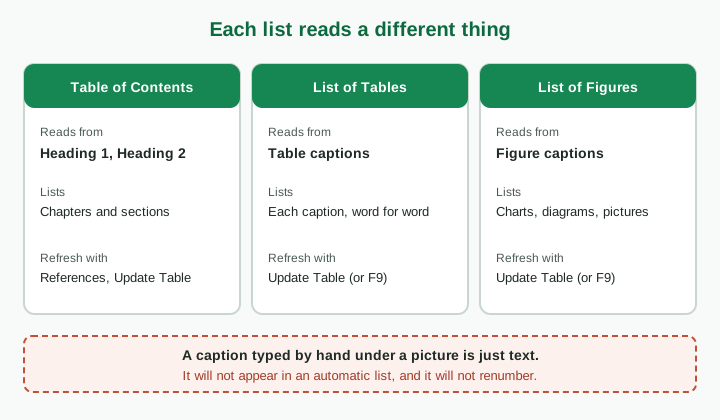
Microsoft's instructions are short. Before you build the list, add a caption to every table and figure you want included. Then place the cursor where the list should go, choose References > Insert Table of Figures and set the caption label to Table or Figure. To refresh, click the list and choose Update Table, or press F9, using Update entire table if you edited a caption.
The key rule is that Word collects captions, not objects. Our guide to figures, table captions and lists of figures in Word walks through captions and cross-references in detail, so this article only covers how they feed the lists.
Two further points from university guidance I opened:
- The University of South Florida asks that table captions in the list match the body word for word, and that only the first sentence of a long caption be listed.
- It also asks for a List of Tables whenever the document contains at least one table, numbering that continues from the contents in Roman numerals, and page numbers aligned to the right margin. That is one university's rule for theses, not yours.
Whether you list plates or other items separately depends on your department. The UNIZIK manual separates figures from plates (photographs), so a photograph-heavy project may need a third list. Your supervisor can tell you which lists to include. A list of abbreviations is a different animal again, since it is not generated from anything; see our list of abbreviations guide.
Why manual contents pages break
Here are the usual failures, and the reason behind each.
| What happened | Why | Fix |
|---|---|---|
| Page numbers are wrong after adding a figure | The contents was typed or not refreshed | Rebuild from headings, then Update entire table |
| A chapter is missing | Its heading is formatted, not styled | Apply Heading 1 |
| The contents lists itself | The page title has a heading style | Remove the style from the title |
| A new section has an old name | Heading was edited after the last update | Update entire table |
| A table is missing from the list | No Word caption, or a different label | Insert a caption, then update |
| Dots run into the number or wrap | Dots were typed, not a tab leader | Use a right tab with a leader |
| Different entries use different indents | Spaces were used to indent | Use the contents levels, not the space bar |
| Entry says Table 3 but the caption says Table 4 | Number typed by hand | Use Insert Caption, so numbering is a field |
All of them trace back to one habit: doing by hand what Word can compute from structure. Once the headings and captions are right, the contents is a by-product you refresh, not a page you maintain.
What does the Word file UniDraft generates do?
Here is what the generator's code does, no more. In a document UniDraft builds, chapter titles are Heading 1 paragraphs and section headings are Heading 2, using real Word heading styles. The preliminary pages use Roman page numbers and the main body uses Arabic numbers starting at 1. "TABLE OF CONTENTS" is deliberately not a heading style, so it cannot list itself.
The contents, list of tables and list of figures are built by deterministic code from the actual headings and captions, not written by a language model. A list of tables or figures (and a list of plates) appears only if the document has such items. Chapter and section titles in the contents are copied from the headings themselves, and the section entries are indented under their chapter. Tables and figures carry dedicated caption styles.
There are two honest limits. The entries in this contents and in these lists are plain text, and they do not show page numbers, because the generator does not paginate the document. They are also not a Word contents field, so Update Table will not refresh them. If your department requires page numbers, which many do, delete that page in Word and insert a contents from the heading styles, as above. Because the headings are real Heading 1 and Heading 2, that works directly. Do the same for lists from the caption styles, or retype captions with Word's Insert Caption command, then update before submission. Always check the final file yourself; UniDraft does not guarantee your supervisor will approve a layout.
If you want a quick automated look at fonts, spacing and margins after editing, the free formatting checker compares an uploaded .docx with your university's stated rules. It does not rebuild your contents for you.
A checklist before you submit
- Every chapter title is Heading 1 and every main section is Heading 2; nothing is faked with bold.
- The page title "Table of Contents" is not a heading style.
- The table shows the number of levels your department asks for.
- You used Update entire table after your last edit to text, figures or references.
- Entry wording matches the headings exactly, including numbering such as 3.2.
- Pages agree with the real pages. Spot check the first chapter, a middle section and References.
- The List of Tables and List of Figures match the captions one for one.
- Every table and figure has a real caption and is cited in the text.
- Roman and Arabic numbering are correct before you update, since the contents quotes them.
- Appendices and References are listed if your department wants them; see how appendices are handled.
- You export a PDF if you will submit one, and check the contents again there.
- Your supervisor has seen the final layout, in line with any corrections they asked for.
Questions a supervisor may ask
- "Is this generated or typed?" You should be able to answer that it is generated from headings, and show how to update it.
- "Why is this chapter not in the contents?" Usually a heading style problem.
- "Where are the figures listed?" If there are none, say so; if there are some, the list should exist.
- "Do the page numbers match?" Open any entry and check.
Where to go next
A correct contents makes a long document easier to navigate. If you are still writing, the step-by-step project guide shows how chapters fit together, and shorter reports follow the same idea at smaller scale.
A seminar report works the same way on a shorter scale; see how to structure a seminar report. A SIWES report with its own front matter follows the same logic; see how to write a SIWES report.
UniDraft helps you organise your confirmed work into an editable Word file. It does not run your analysis, produce slides, or promise that a particular layout will be approved. Start your project document and check the contents and lists against your department's brief before you submit.
Sources
- Update a table of contents, Microsoft Support: Update Table options and the limit on manually created tables.
- Insert a table of figures, Microsoft Support: captions first, Insert Table of Figures, updating.
- Accessibility, document structure and table of contents, Texas Tech University Writing Center: heading styles, updating a style, not skipping levels.
- List of Tables, University of South Florida graduate studies: caption matching and layout (one university's rule).
- Manual of Style, Nnamdi Azikiwe University School of Postgraduate Studies: order of preliminary pages, contents levels and page numbers (postgraduate document).