
If your final year project needs an unnumbered cover, Roman numerals on the preliminary pages and Arabic numbers starting at Chapter 1, a reliable approach is three Word sections rather than three sets of typed numbers. Typing i, ii and 1 into footers works until one page moves, then everything after it is wrong. Confirm your department's exact rule first, then build the numbering once and let Word maintain it.
Page numbers need to support a report that follows your actual instructions. UniDraft helps organise your confirmed work into an editable project document, with document formatting handled by code. Start your academic report with UniDraft, then inspect numbering and contents after any Word edits. The walkthrough below remains useful for checking the final file.
The short answer
- Put a Next Page section break after the cover and another one before Chapter 1, so the file has three sections.
- In section 2 and section 3, click into the footer (or header, wherever your number sits) and turn Link to Previous off before you insert anything.
- In section 2, insert a page number and format it as
i, ii, iii. In section 3, format it as1, 2, 3and set Start at to 1. - Leave the cover's footer empty, then update the contents page.
Microsoft's own instructions for this (different formats in different sections) follow the same sequence: create the break, unlink the new section's header or footer, then use Format Page Numbers.
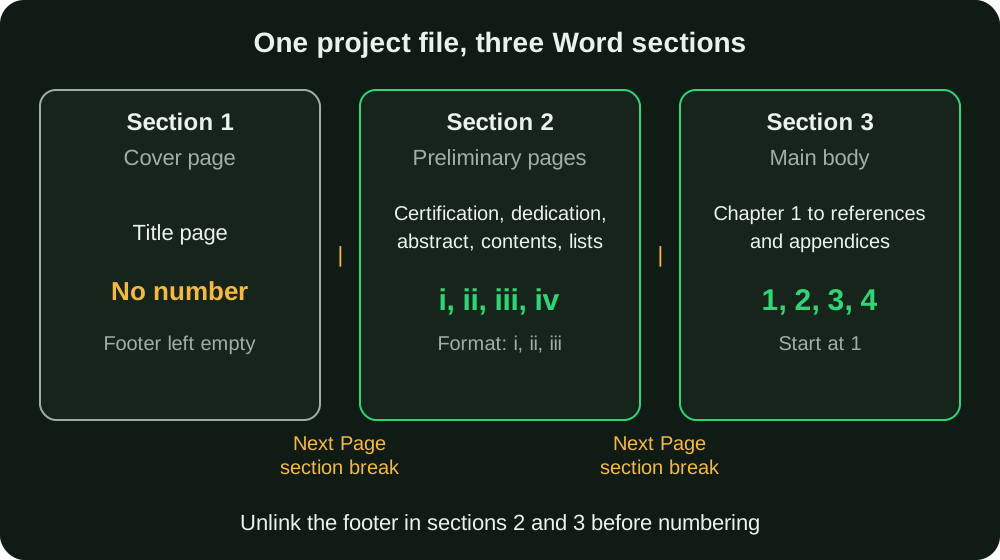
First, identify the three parts of your document
For the example layout used here, the document has a cover (title) page, a run of preliminary pages, and then the main chapters. The preliminary pages usually include the certification page, dedication, acknowledgements, abstract, table of contents and lists of tables and figures. Our guide to formatting a final year project for a Nigerian university covers that skeleton in full.
A common display is:
| Part | Typical display | What you configure |
|---|---|---|
| Cover / title page | No number | Empty footer in section 1 |
| Preliminary pages | i, ii, iii, iv (lowercase Roman) |
Roman format in section 2 |
| Chapter 1 onward | 1, 2, 3 (Arabic) |
Arabic format, Start at 1, in section 3 |
"Common" is not "universal". Departments differ on several points, and the differences change what you type in the dialog box:
- Whether the cover counts as page
i(hidden) so the certification page showsii, or the certification page is the first visiblei. - Whether the abstract sits in the preliminary pages (Roman) or is treated as page 1.
- Whether numbers are centred at the bottom or sit at the top right.
- Whether appendices continue the Arabic sequence or have their own lettering.
Your departmental project handbook, a current student-confirmed guideline and your supervisor settle these; an older approved project is background, not proof that the rule is unchanged. Do not copy a friend's layout from another faculty. If your university publishes a guide, look it up under format guides by university, and treat a written instruction from your supervisor as the deciding rule.
Set up the section breaks in Word
Work on a copy while you learn this. A misplaced break can alter several headers and footers at once, and undoing it is easier when you have not touched your only copy.
- Turn on Home > Show/Hide (¶) so you can see the breaks. Microsoft recommends this to check a break was actually created.
- Put your cursor at the very end of the cover page and choose Layout > Breaks > Next Page. This starts the preliminary pages as a new section on a new page.
- Put your cursor at the end of the last preliminary page (usually the list of figures or tables) and insert a second Next Page break. Chapter 1 now starts a new section.
- Double-click the footer of the first preliminary page to open it. The label on the left should read something like Footer -Section 2-.
- On the Header & Footer tab, turn Link to Previous off. Do this before you insert or edit anything, because until you do, whatever you put here is copied into the cover's footer as well.
- Choose Insert > Page Number, select the placement and style your department wants, then choose Page Number > Format Page Numbers. Set Number format to
i, ii, iiiand, under Page numbering, choose Start at and enter the starting value. - Scroll to the first page of Chapter 1 and open its footer (Footer -Section 3-). Turn Link to Previous off again. Then use Format Page Numbers to set
1, 2, 3and Start at to1. - Click Close Header and Footer, or double-click in the body text.
Two details trip people up. First, headers and footers are linked separately, so if your page number is in the footer, unlink the footer. Unlinking only the header changes nothing. Second, the Start at control is per section, which is why Chapter 1 needs its own explicit setting rather than trusting Word to reset.
Which value do I put in "Start at"?
If the first visible preliminary page should read i, use Start at 1 with the Roman format. If your department counts the cover as i without showing it, so the next page reads ii, use Start at 2. Word will display the number in whichever format the section uses, so a start value of 2 in lowercase Roman format shows ii. Whichever you use, check the first preliminary page after applying it.
Keeping the cover unnumbered
There are two workable ways to keep the cover blank, and they behave differently.
Method A: a separate cover section (recommended for this layout). The cover is section 1, its footer is empty, and section 2's footer is unlinked before any number is inserted. This is the layout in Figure 1 and it is the safest, because the cover simply has no number field.
Method B: Different First Page. Microsoft's guidance for a title page is to open Insert > Header or Footer > Edit Header or Edit Footer, select Different First Page on the Header & Footer tab, and remove the number from that first page. Microsoft also notes that this option works for any section, not just the first page of the document. If you use it on the cover section, the cover stays blank, but you should still put the preliminary pages in their own section so the Roman and Arabic formats can differ.
There is one warning in Microsoft's own steps worth remembering: leave Different First Page unchecked in sections where you do not want the first page to lose its number. If Chapter 1's first page suddenly has no number, this checkbox is the usual cause.
Check the table of contents afterwards
Once numbers and headings are correct, go to References > Update Table. Word offers two options. Update page numbers only refreshes just the page references. Update entire table also picks up changed heading text, so choose that one after a final edit. Microsoft states that a table of contents not created automatically from headings cannot be updated by Word, so if yours will not refresh, it was probably typed by hand.
If the contents shows the right words but stale page numbers, confirm your chapter headings use real Word heading styles (Heading 1 for chapters, Heading 2 for sections), then update the field again. Our step-by-step guide to writing a final year project is written around those chapter headings, which is a good reason to style them properly from the start.
In this example layout the contents page is preliminary and carries a Roman number, while the chapters listed use Arabic numbers. Confirm your own rule. A chapter listed as viii means the Chapter 1 section still has the Roman format.
Common fixes
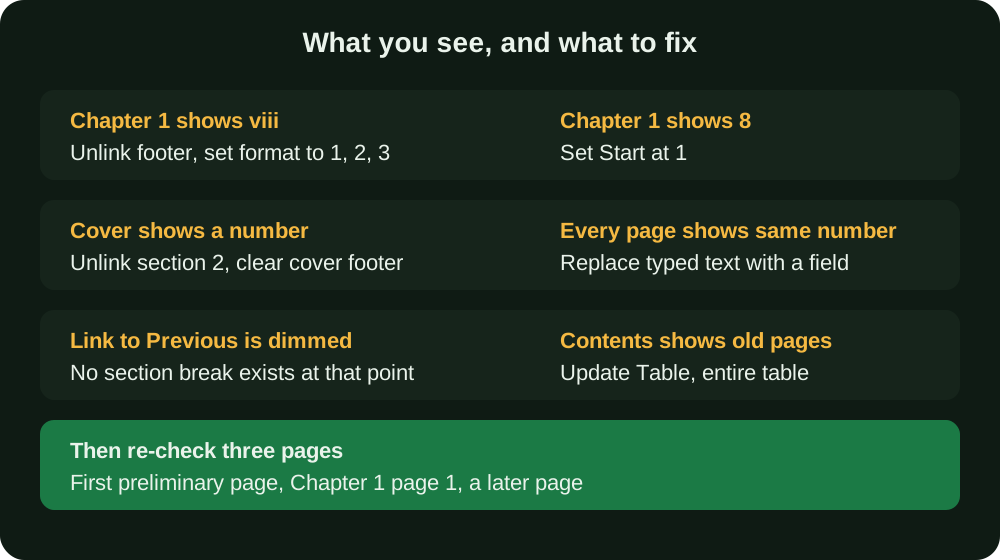
- Chapter 1 shows
viiiinstead of1. Its footer is still linked to the section before, or its number format was not changed. Unlink it and set the format to1, 2, 3. - Chapter 1 shows
8instead of1. The format is right but the count carried on. Choose Start at 1 for that section. - The cover displays a number. You inserted the number in section 2 before unlinking, so it also landed in section 1. Unlink section 2's footer, then clear the cover's footer. Deleting the number in the cover should now leave section 2 untouched.
- Every page shows the same number. The digits were typed rather than inserted as a page-number field. Delete them and use Insert > Page Number.
- Link to Previous is dimmed. Microsoft notes this can happen when no section break exists. Check with Show/Hide that your break is actually a section break and not just a page break.
- Numbers vanish on the first page of a section. Different First Page is ticked for that section. Untick it.
- The contents is out of date. Update the entire table after the final layout change.
A checklist before you submit
After your last edit, page through the document and confirm:
- The cover has no visible number (and no stray
i). - The first preliminary page shows the value your department requires (
iorii). - The Roman numbers run without gaps or repeats through to the last preliminary page.
- Chapter 1's first page reads
1, in Arabic. - A page from a later chapter still follows the sequence, which shows no accidental restart elsewhere.
- The contents page shows the same numbers as the actual pages.
- Numbers sit in the same position on every numbered page.
- The file still looks right after converting to PDF, if you are submitting a PDF or printing.
Focus on three pages: the first preliminary page, the first page of Chapter 1, and a page deep into the document. The first two reveal start and format errors, and the third reveals an accidental restart. Repeat it after adding figures, references or appendices, because pagination moves. A reference list that runs an extra page will shift everything after it, which is one reason to finish your reference list before the final page-number check.
Other documents in the same layout
The same three-section approach applies to other long university documents, with different content in the sections. A seminar report normally has a much shorter set of preliminary pages, as our guide to structuring a seminar report in Nigeria shows, and a SIWES report follows the same principle when your institution asks for Roman numerals on its front matter (see how to write a SIWES report). Where the abstract sits changes which section it belongs to, so follow your department's rule for it.
Some things do not depend on numbering at all. Your margins, font size, line spacing and heading styles are checked separately from page numbers, and mistakes there are as visible to a supervisor as a wrong viii. Upload your finished .docx to the free formatting checker to compare font, spacing and margins against your university's stated rules. The file is not stored. Use it after you have finished editing, alongside your own page-by-page check of the numbers.
Why supervisors care about this
Page numbering is one of the things supervisors and external examiners notice at a glance, because a wrong number is visible without reading a word. A typical comment reads "preliminary pages should be in Roman numerals" or "start numbering from Chapter 1". These are quick to fix in the right way and painful to fix at the last minute, particularly after your Chapter 4 results have added tables and figures that pushed pages around. Do the section setup early, when the document is small, and it will hold as the document grows.
Can you do this in Word for the web?
For different number formats in separate sections, use the desktop Word application. Microsoft's Word for the web page-number guidance directs users to desktop Word for that setup. The web version can display a document that already has section numbering, but it is not the same editing workflow described above.
Save a copy before changing section breaks. If you only have browser Word, preserve an already correct document and arrange access to desktop Word for the numbering change, rather than replacing working footers with typed numbers.
After saving, inspect the first visible preliminary page, the page before Chapter 1, Chapter 1 itself, and one later chapter. Export a PDF and check the same four points because page layout can move between environments. Then check the contents entries against the pages you can actually see.
An automatic contents field and a plain contents list behave differently. Update Table works on an automatic field. A plain list needs its entries checked and edited separately; numbering changes do not turn it into an automatic field. Do not replace an approved contents layout without a backup and a reason. This guide describes Word editing, not a change to UniDraft's document-generation behaviour.
Where UniDraft fits in
UniDraft builds your written project as an editable Word (.docx) file, with formatting rules applied by deterministic code instead of by a writing model, following your supervisor's instructions first, then your department's and university's format. It never invents results, sources or approvals. You can read more about that approach in what a compliance engine for academic documents is. If you edit the file in Word afterwards, run the final page-number and contents check above before you submit. Check the current document price and included correction rounds before checkout.
Sources
- Customize page numbers and their formats in different Word document sections, Microsoft Support: section breaks, Link to Previous, Format Page Numbers, Start at, Different First Page.
- Start page numbering later in your document, Microsoft Support: unnumbered title page using Different First Page.
- Insert page numbers, Microsoft Support: Insert > Page Number and Format Page Numbers.
- Update a table of contents, Microsoft Support: Update Table options and the manual-table limitation.