
Excel can handle the descriptive part of a final year project analysis: a clean data sheet, counts and percentages with COUNTIF, means and standard deviations, pivot-table frequency tables, charts, and a few tests through the Data Analysis ToolPak. It struggles with reliability analysis, labelled codes across many variables and anything your supervisor says must be done in a named package.
UniDraft helps you organise your confirmed results, checked sources and supervisor instructions into an editable Word project document. When your tables are done and checked, start your project document and bring the real outputs from your own sheet. UniDraft does not run or calculate your analysis; you do that in Excel.
This guide covers the Excel side only. Preparing responses comes first, so read how to code and clean questionnaire data beside it. What each summary measure means, and how to write it up, is in descriptive statistics for a final year project, so I will not repeat those definitions here.
How should I set out the data sheet?
Most Excel trouble in student projects starts with the sheet, not the formulas. Use one worksheet for the raw-turned-working data, built like a database table: one header row, one row per respondent, one column per variable. No merged cells, no blank rows in the middle, no totals underneath, no colour used as data.
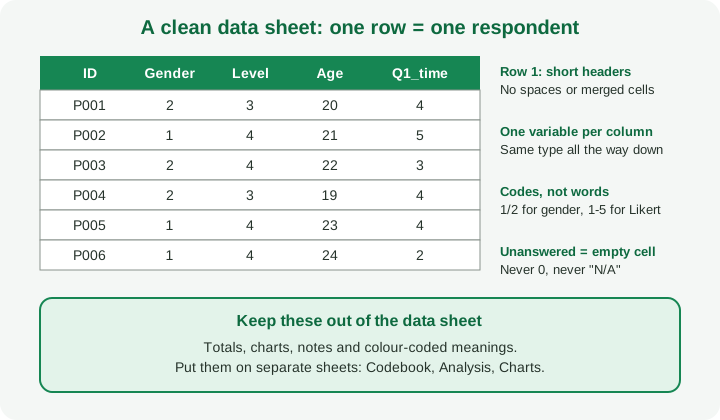
Habits that save you later:
- Keep an untouched copy of the original export in a separate file or sheet before you change anything. If you collected with a form, the Google Forms guide explains what the export looks like.
- Give every respondent an ID (P001, P002...) and no names in the analysis file.
- Use short headers without spaces, such as Q1_time. A header that is a whole question makes formulas hard to read.
- Enter codes, not words. If gender is typed as Male, male, M and "Male " in different rows, Excel sees four categories. Microsoft's COUNTIF page warns that stray leading or trailing spaces can give unexpected results when counting text, and suggests TRIM or CLEAN.
- Leave unanswered items empty. A blank is not a zero, not a disagree and not "not applicable".
- Put the codebook on its own sheet: variable name, question wording, what each code means, and how missing answers are handled.
- Freeze the header row (View, Freeze Panes) so you can still see which column is which when you scroll.
The cleaning checks, range checks, duplicate review and decision log belong to the coding guide. In Excel, a quick range check is a filter on each coded column: if a 1 to 5 item contains a 7 or a 55, you will see it in the filter list. Then check the original response before you change anything.
What is a fictional data set I can test the formulas on?
The numbers below are invented for practice. They are not from any real study or institution. Suppose 20 final-year students answered a small pilot questionnaire. Columns are: A = ID, B = Gender (1 male, 2 female), C = Level (3, 4 or 5 for 300, 400 or 500 level), D = Age, E = Q1_time, an item reading "The library portal saves me time" (1 strongly disagree to 5 strongly agree). Data sit in rows 2 to 21.
The 20 Q1_time answers are: 4, 5, 3, 4, 4, 2, 5, 4, 3, 4, 5, 1, 4, 3, 4, 5, 2, 4, 4, 3. The 20 ages are: 20, 21, 22, 19, 23, 24, 21, 22, 20, 25, 22, 21, 26, 23, 22, 20, 24, 21, 22, 27.
Type your own copy and check that your results match the figures below. I computed each result separately outside Excel, so a mismatch means a typing slip in your sheet.
Which Excel formulas give counts, percentages, means and SD?
Write each formula in a cell on an Analysis sheet, pointing to the data sheet, for example Data!E2:E21. Here they are written for the sheet above.
| What you need | Formula | Result on the fictional data |
|---|---|---|
| Number of answers given to Q1 | =COUNT(E2:E21) |
20 |
| Number of blanks | =COUNTBLANK(E2:E21) |
0 |
| Respondents who chose 4 | =COUNTIF(E2:E21,4) |
9 |
| Percentage who chose 4 | =COUNTIF(E2:E21,4)/COUNT(E2:E21) (format as %) |
45% |
| Agree or strongly agree (4 or 5) | =COUNTIF(E2:E21,">=4") |
13 (65%) |
| Mean of Q1 | =AVERAGE(E2:E21) |
3.65 |
| Median of Q1 | =MEDIAN(E2:E21) |
4 |
| Mode of Q1 | =MODE.SNGL(E2:E21) |
4 |
| Sample standard deviation of Q1 | =STDEV.S(E2:E21) |
1.09 (1.0894 before rounding) |
| Minimum and maximum age | =MIN(D2:D21) and =MAX(D2:D21) |
19 and 27 |
| Mean age | =AVERAGE(D2:D21) |
22.25 |
| Sample SD of age | =STDEV.S(D2:D21) |
2.10 |
| Mean of Q1 for males only | =AVERAGEIF(B2:B21,1,E2:E21) |
3.89 (9 respondents) |
| Mean of Q1 for females only | =AVERAGEIF(B2:B21,2,E2:E21) |
3.45 (11 respondents) |
Points that catch students:
- STDEV.S or STDEV.P? Microsoft says STDEV.S assumes your values are a sample and uses the n minus 1 method; STDEV.P is for data that is the entire population. Use STDEV.S for a questionnaire sample, and state which one you used if asked. On this data the two differ slightly (1.09 and 1.06).
- Percentages need a stated base. Dividing by
COUNT()uses everyone who answered that item. Dividing by the number of questionnaires returned is different when some skipped it. Pick one and say which. - A percentage format is only formatting. The cell still holds 0.45. Round when you report, and do not type rounded numbers back into later formulas.
- Text criteria are not case sensitive. Microsoft notes COUNTIF treats "apples" and "APPLES" alike, but extra spaces still break matches.
- Do not average a coded category. The mean of the Gender column is meaningless: 1 and 2 are labels. Only counts and percentages make sense there.
- Using AVERAGEIF to compare two groups is description, not a test. Males scoring 3.89 against females 3.45 in a sample of 20 does not show that a real difference exists. Whether a test is needed is covered in which statistical test fits your project.
Whether a mean is meaningful for a single Likert item, or only for a summed scale, depends on what your department accepts; the Likert scale guide explains that debate.
How do I build a frequency table with a PivotTable?
Typing a COUNTIF for every answer on every question gets tedious. A PivotTable builds the frequency table for you.
- Click any cell inside your data (the header row must be one row with no blank rows or columns, which Microsoft's PivotTable page asks for).
- Go to Insert, PivotTable, accept the range and choose a new worksheet.
- Drag Q1_time into Rows.
- Drag Q1_time into Values as well. Numbers default to Sum, which would add up the scores and give 73. That is not a frequency.
- Right-click the value, choose Value Field Settings and under Summarize Values By pick Count.
- Drag Q1_time into Values a second time. In Value Field Settings, open Show Values As and choose % of Grand Total. Microsoft documents this route for showing a total and a percentage together.
You should get exactly this:
| Response | Count | Percentage of 20 |
|---|---|---|
| 1 Strongly disagree | 1 | 5% |
| 2 Disagree | 2 | 10% |
| 3 Neutral | 4 | 20% |
| 4 Agree | 9 | 45% |
| 5 Strongly agree | 4 | 20% |
| Total | 20 | 100% |
Check the Count column against =COUNTIF(E2:E21,1) and so on. The totals must equal the number of respondents you reported in Chapter 3.
Two more uses:
- Cross-tabulation. Put Level (or Gender) in Rows and Q1_time in Columns, with Count in Values. This is a table of counts for two categorical variables, useful before any chi-square test.
- Grouped ages. Right-click an age in the Rows area, choose Group, and type a start, end and size. Decide the age bands from your study, not from what looks tidy, and label them clearly. If you are unsure how the Group dialog behaves in your version, tick the totals against a COUNTIFS check.
Edit the data sheet, and the PivotTable does not necessarily change by itself; refresh it (right-click, Refresh) before you copy a table into your report.
How do I turn the results into charts that survive printing?
Charts come after tables, not instead of them. Select the small frequency table (not the whole data sheet) and use Insert to choose a column or bar chart. For one numeric variable, such as age, use a histogram rather than a column chart of raw ages.
- Give the chart a title that says what and who: "Responses to 'The library portal saves me time' (n = 20)".
- Label both axes, including the unit or the response scale.
- Delete gridlines, 3D effects and chart junk, and avoid pies with more than a few slices.
- Use colours that still separate when printed in greyscale, since many project copies are printed black and white.
- Paste into Word as a picture or a linked chart according to what your department allows, then caption it consistently. The guide to figures, tables and captions in Word covers numbering and captions; your department's rules about table style come from your own supervisor, and UniDraft's formatting guides cover university layouts.
Read any chart as a reader would. If the heights alone tell the story, the table beneath it can be shorter. If you must explain the chart in three paragraphs, it is the wrong chart.
What can the Data Analysis ToolPak do, and how do I turn it on?
The ToolPak is an Excel add-in. Microsoft's support page for loading it says it applies to Excel for Microsoft 365, Excel 2024 and Excel 2021, on Windows and Mac. Excel for the web is not in that list, so use the desktop app.
On Windows: File, Options, Add-ins. In the Manage box choose Excel Add-ins and select Go. Tick Analysis ToolPak and select OK. If it is not listed, select Browse; if Excel says it is not installed, select Yes to install it.
On a Mac: Tools, Excel Add-ins, tick Analysis ToolPak, select OK, then quit and restart Excel. Microsoft says the Data Analysis command then appears on the Data tab, and its separate ToolPak overview page says to look for Data Analysis there.
The tools Microsoft lists include:
- Descriptive Statistics
- Histogram
- Correlation and Covariance
- Regression
- Anova: Single Factor, and two two-factor versions
- t-Test (paired, and two-sample with equal or unequal variances)
- z-Test: Two Sample for Means
- F-Test for variances, Rank and Percentile, Sampling, Moving Average, Exponential Smoothing, Random Number Generation and Fourier Analysis
Two cautions from the same page: analysis runs on one worksheet at a time, so with grouped sheets the output lands only on the first; and a separate "Analysis ToolPak - VBA" add-in exists for macros, which a student project normally does not need.
Treat ToolPak output as a snapshot. If you correct a data entry afterwards, run the tool again and replace the output rather than patching a number by hand.
The tool being available does not tell you the test is right. A paired design needs a paired test; unequal group sizes and spread change which t-test you pick. Before clicking, read the t-test and ANOVA guide and how to read a correlation table, and confirm your test with your supervisor. If a result is odd, go back to your rows and check them one at a time; do not press on because Excel produced a number.
When is Excel not enough?
Excel is a good place to enter, clean, tabulate and chart. It is a weaker place to do everything else, and the figure below sets out the split.
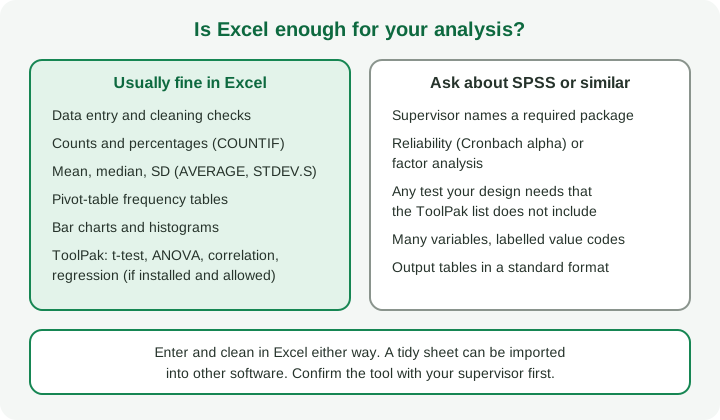
Raise a different tool with your supervisor when:
- The department or supervisor names a package. Follow it. Some departments expect SPSS output; others accept Excel.
- You need a method the ToolPak list does not include, such as a reliability coefficient for a multi-item scale or factor analysis. Excel has a CHISQ.TEST function, but you must build the expected counts yourself, so a chi-square test is easier in statistical software; see the chi-square guide for the logic.
- You have many variables with value labels, and the sheet is hard to keep consistent without them.
- You want standard output tables and a record of each step, so someone else can repeat your analysis.
If you do move, a tidy sheet imports cleanly, so the layout work was never wasted. Say in your methodology chapter which software you used and for which step; the methodology guide covers where that belongs. Do not claim an analysis you did not run, and never present software output you cannot reproduce.
Common mistakes in Excel analysis
- Totals or notes inside the data range, so a formula counts them as respondents.
- Typed zeros for unanswered items, dragging the mean down.
- Numbers stored as text. They sit left-aligned and COUNT skips them. Check with
=COUNT()against the number of rows. - Formulas that point to the wrong range after rows are added. Check the first and last row of every range.
- Sum instead of Count in a PivotTable, which turns a frequency table into a pile of totals.
- Pasting formulas into the report. Paste values and keep the formula sheet as your audit trail.
- Reporting a mean for a category code such as gender or level.
- Not saving a dated version before big edits. Save as P001-data-v1, v2, and so on.
- Chart axes that start in odd places and exaggerate differences.
- Report numbers that differ from the sheet. After writing Chapter 4, tick every figure against the Analysis sheet.
The Chapter 4 guide covers how to present results once you have them.
Questions a supervisor or panel may ask
- Why did you use Excel, and who approved it?
- How many respondents are in each table and why?
- How did you handle blank answers?
- Which standard deviation did you use, and why?
- Can you show how this percentage was calculated?
- What would you do differently with specialist software?
Practise reproducing one table from the raw data on a blank sheet. If you can, you understand your own results.
Where UniDraft fits in
You do the analysis; UniDraft does not run it, calculate statistics or check that your formulas are right. Once your numbers are verified, UniDraft organises your confirmed results, checked sources and supervisor instructions into an editable Word project document, so the write-up of your tables sits with the rest of your project. Start your project document. For references, UniDraft's free citation tool can help once you know which sources you used.
If your department expects SPSS, see the SPSS beginner guide.
Sources
Microsoft pages opened for this guide (check the current version of each for your Excel edition):