SPSS (IBM SPSS Statistics) is statistical software that lets you enter questionnaire data, label it, summarise it and run tests through menus instead of code. For a final year project the usual routine is: set up the variables, declare missing values, run descriptive statistics, run the one test your objective needs, and export the tables to Word.
UniDraft organises the results you have confirmed, your checked sources and your supervisor's instructions into an editable Word project document. Start your project document after your SPSS output is checked; the analysis itself is yours to run, and UniDraft does not run it for you.
This guide is the software walkthrough. It deliberately does not repeat the thinking behind the numbers. For that, use how to code and clean questionnaire data before you open SPSS, and which statistical test fits your project to choose the method.
What is SPSS used for in a final year project?
In most departments that ask for it, SPSS is the tool behind the quantitative parts of Chapter 4. IBM describes the product as software for statistical testing, regression, forecasting and data preparation, with market research uses such as complex samples and missing data. A student project uses a small corner of that:
- Demographic tables: counts and percentages for sex, level of study, department.
- Item and scale summaries: frequencies for each questionnaire item, and mean and standard deviation for a scale score.
- Group comparisons: a t-test or ANOVA when an objective compares groups.
- Association tests: chi-square for two categorical variables, correlation for two numeric ones.
- Charts: simple bar charts and histograms.
It does not decide your methods. It will calculate almost any number you ask for, including numbers that make no sense for your data. The judgement about what to ask for comes from your objectives, your variable types and your supervisor.
Not every project needs SPSS. A qualitative study built on interviews has no SPSS step, and a very small dataset can be handled in a spreadsheet. Some departments name the software they expect; others accept any properly reported analysis. Check your department's brief before you spend time learning a package.
How does an SPSS project workflow run, start to finish?
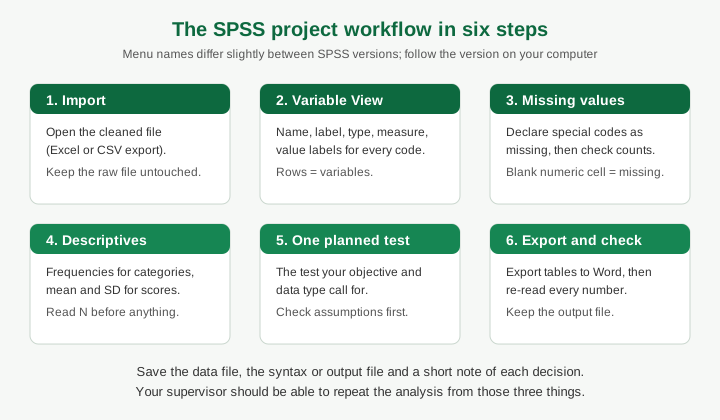
The figure above is the whole job in six steps. The sections below take each one in turn. Menu names change slightly between SPSS versions (the Kent State University Libraries guide, for example, places the t-test under Analyze, Compare Means and Proportions, while older tutorials say Compare Means), so follow the labels on your own screen.
Step 1: Bring the data in
SPSS opens its own data files and can import spreadsheet and CSV files. Most students collect responses in a form tool or on paper, enter them in a spreadsheet, and import that.
Before importing:
- Keep the raw export untouched in its own folder.
- Make a working copy with one row per respondent and one column per variable.
- Use short, consistent column headings with no spaces (for example
q1_clear), and put a participant ID in the first column. - Enter numbers as numbers. A cell that holds the text "Agree" or "N/A" in a numeric column causes trouble later.
If your responses started life in an online form, the Google Forms questionnaire guide covers what the export looks like and what to do with it first.
Step 2: Data View, Variable View and why labels matter
SPSS has two tabs at the bottom-left of the Data Editor, and most beginner confusion comes from not knowing which one you are in.
| Data View | Variable View | |
|---|---|---|
| What each row is | One respondent (a case) | One variable |
| What each column is | One variable | A property: name, type, label, values, missing, measure |
| What you do there | Look at and edit answers | Describe what the answers mean |
The University of Nottingham's SPSS preprocessing guide describes the same split: Variable View shows each variable's type, measure, label, values and missing-value settings, and you should check it after importing. Data View shows the data, with an option to toggle value labels on.
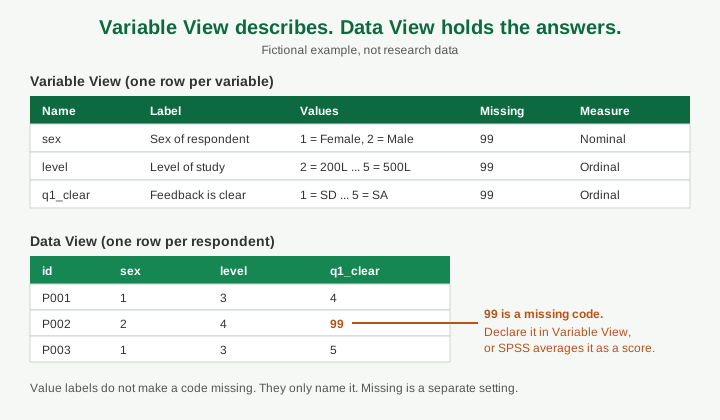
Do these four things for every variable:
- Name: a short, unique name.
- Label: a human-readable description, such as "Feedback is clear", that will appear in your output.
- Values: a label for each code (1 = Female, 2 = Male; 1 = Strongly Disagree to 5 = Strongly Agree). The Nottingham guide notes that without value labels SPSS shows only the numbers, which makes output hard to read for you and for your examiner.
- Measure: Nominal for unordered categories, Ordinal for ordered ones, Scale for true numeric measurements. The same guide spells this out, and it matters because SPSS offers different charts and options depending on the setting. If SPSS guessed wrongly on import, correct it.
Your Variable View is effectively your codebook in software form. If you wrote a codebook as described in the coding and cleaning guide, Variable View should match it line for line.
Step 3: How do I handle missing values in SPSS?
A blank numeric cell is treated by SPSS as system-missing and shown as a dot in Data View. That is the simple case. The harder case is when you or your data entry used a special code such as 99 or 999 for "no answer". SPSS does not know that 99 means "no answer". To it, 99 is a score, and it will happily include it in a mean.
IBM's Data Editor tutorial gives the steps:
- Open Variable View.
- Click the Missing cell for the variable and open the dialog.
- Choose discrete missing values and enter the code, for example 99. You can list up to three discrete codes, or one range plus one discrete code.
- Click OK.
- Optionally, in the Values cell, add a label for that code, such as "No response".
An important detail that students often miss: a value label alone does not make a code missing. Labelling 99 as "No response" only names it. The Missing setting is what tells the calculations to skip it.
Two further cautions from the sources I read. First, SPSS does not recognise empty text cells as missing in string variables, so text placeholders need to be declared as missing by hand (the Nottingham guide shows this). Second, declaring missing values is not the same as deciding what to do about them. Whether answers are left out, analysed as they stand, or handled in some other way is a design decision to agree with your supervisor, as the cleaning guide explains. Never type in an answer a respondent did not give.
After declaring missing values, run a quick frequency check on a few variables and confirm the valid N matches what you expect. A mean that rests on 38 respondents when you collected 60 is a finding to explain, not hide.
Step 4: Run descriptive statistics first
Always summarise before you test. The usual route is Analyze, Descriptive Statistics, Frequencies for categorical variables and for item-level Likert tables, and Descriptives (or the Frequencies statistics options) for means and standard deviations of numeric variables. Menu wording can vary by version.
What to look for in the first output:
- N valid and N missing for every variable. These tell you the denominator behind every percentage.
- Impossible values. A maximum of 7 on a 1-to-5 item means a typing error or an undeclared code.
- Variables with almost no variation. If 59 of 60 respondents gave the same answer, a comparison on that variable will tell you very little.
- Lopsided categories. A group with 3 respondents cannot carry a group comparison.
Which summary suits which variable (percentages for nominal data, median for ordinal, mean and standard deviation for numeric) is covered in descriptive statistics for a final year project, and the scoring of agreement scales, including reverse coding and cut-offs, is in Likert scale analysis. SPSS will produce the tables, but it will not tell you which one belongs in your project.
Step 5: Run one planned test
A beginner mistake is to run every test in the menu and report whichever one produced a small p-value. Decide the test from your objective and your data first, then run exactly that.
As an example of the mechanics, take a fictional objective: to determine whether satisfaction scores differ between male and female respondents. The outcome is a numeric scale score and the grouping variable has two groups, so an independent-samples t-test is a candidate (see the t-test and ANOVA guide for when it fits and what its assumptions are).
The steps, from the Kent State University Libraries SPSS guide:
- Choose Analyze, Compare Means (labelled Compare Means and Proportions in newer versions), then Independent-Samples T Test.
- Move the numeric outcome into Test Variable(s).
- Move the two-group variable into Grouping Variable, click Define Groups and enter the two codes (for example 1 and 2).
- Request the homogeneity of variance (Levene's) test in the options if your version does not show it by default, then click OK.
The output has a Group Statistics table (N, mean, standard deviation for each group) and an Independent Samples Test table with two rows: equal variances assumed and equal variances not assumed. Levene's test is a check that tells you which row to read. In the Kent State example, a small Levene significance value led to the "not assumed" row, and a large one leads to the "assumed" row. The actual group-difference result is the t, df and two-sided significance in the row you chose, together with the mean difference and its confidence interval.
Two warnings. The Levene check is not your finding; it is a gatekeeper. And a significant result is not automatically an important one. The Which test guide and the correlation interpretation guide both show how to read an output table without over-claiming.
If your objective is about two categorical variables, the equivalent walkthrough is the chi-square test guide.
Step 6: Export tables to Word, then verify them
SPSS puts everything you run into the Output Viewer. According to IBM's tutorial on exporting results, you choose File, Export, set the objects to export, and select Word as the type. Pivot tables arrive in Word as tables that keep their formatting, and charts arrive as images. Exporting all objects also includes notes that are not visible in the Viewer.
Treat the export as raw material, not as Chapter 4:
- Do not paste the full output. Keep only the tables your objectives need. Pages of default SPSS output with "Case Processing Summary" tables read as padding.
- Re-title and renumber. Give every table the caption style your department expects. For caption mechanics in Word, see the Word captions guide.
- Re-read every number against the output. Typing or pasting errors are the commonest way a correct analysis becomes a wrong report.
- Write the interpretation yourself. A table does not explain what it means for your objective. The Chapter 4 guide shows how to introduce, present and interpret each table.
- Keep the output file and, if you used it, the syntax. SPSS can save the Output Viewer as its own file. If your supervisor or examiner asks how a figure was produced, you can show them.
If your department has specific table styles, margins or page layouts, follow its brief and use the format pages and the formatter for the document-level layout rather than formatting by hand.
How do I get access to SPSS?
SPSS is commercial software, so access is the first practical hurdle. I will not quote prices; they change, and IBM's own pages are the place to check. These are the routes IBM and universities describe.
| Route | What IBM's pages say | What to check |
|---|---|---|
| University or department access | IBM sells campus editions, described as a single licence for campus-wide teaching, learning and non-commercial research at educational institutions. | Whether your university, faculty or computer centre has a licence, a lab with it installed, or a way for students to use it. Ask your supervisor or the ICT unit. |
| Free trial | IBM's FAQ describes a trial that starts when you register, requires an IBMid and an internet connection, runs on 64-bit Windows and macOS, allows one trial per 365 days, and comes without IBM technical support. The FAQ states 14 days. | The product page shows a "Start free trial" button without stating the length, and other sites quote different lengths. Confirm on IBM's current sign-up page before you plan your timetable around it. |
| Student and faculty licence | IBM lists single-user student and faculty licences sold through authorised vendors at academic pricing. | Buy only through IBM's own pages or a vendor IBM lists. |
| Subscription or perpetual licence | IBM lists subscription plans and perpetual licences, with a licence key used for the latter. | Usually aimed at organisations, not individual students. |
Plan your trial window carefully. If a trial runs for a short period, do not start it until your cleaned data and codebook are ready. A trial spent on formatting a spreadsheet is a trial wasted.
A warning about "free" downloads from unofficial sites: cracked or repackaged copies of paid software are a security risk and an integrity problem, and a project built on software you cannot document is hard to defend. Use a licensed route, or ask whether your department allows another tool you can document properly.
Common SPSS mistakes supervisors flag
- Value labels missing. The output shows 1, 2, 3 and no one can tell what they mean.
- Missing codes treated as scores. A 99 inside a mean is the classic.
- Wrong measure setting. A nominal variable set as Scale, then treated as numeric.
- Pasting screenshots of the Output Viewer. Rebuild a clean table in your department's style.
- Running tests until one is significant. Choose before you click.
- Reporting output you cannot reproduce. No saved data file, no output file, no record of exclusions.
- Copying a sample report's tables. Your numbers must come from your data.
- Not reporting N. Every table should show how many cases stand behind it.
Questions a supervisor or panel may ask
- Which version of SPSS did you use, and who supplied the licence?
- How did you code the variables, and where is your codebook?
- How did you handle missing responses?
- Why did you choose this test for this objective?
- What are the group sizes in this comparison?
- Can you show me the output that produced this table?
Have honest, specific answers ready, drawn from your own files.
A pre-analysis checklist
- The department or supervisor has confirmed SPSS (or an alternative) is acceptable.
- I have a legitimate way to access the software for the whole analysis period.
- The raw data file is stored separately and untouched.
- Every variable has a name, a label, value labels and the right measure.
- Special missing codes are declared in the Missing column and checked.
- I ran descriptives first and checked N, ranges and group sizes.
- I chose the test from my objective before running it.
- I saved the data file and the output file with matching dates.
- Every number in my report matches the output.
Where UniDraft fits in
UniDraft does not open SPSS for you or run any of the steps above. What it does is help once you have verified results: it organises the confirmed analysis, your checked sources and your supervisor's instructions into an editable Word project document. Start your project document when your tables are checked, or use the free citations tool to keep your references consistent.
Prefer a spreadsheet? The Excel guide covers what it can and cannot do.
Sources
- IBM: SPSS Statistics product page: product description, licensing and academic options (opened 31 October 2026).
- IBM: SPSS Statistics resources and FAQ: free trial terms, supported systems, licence types (opened 31 October 2026).
- IBM: Missing Values for a Numeric Variable: defining missing values in Variable View.
- IBM: Exporting Results to Microsoft Word, PowerPoint, and Excel Files: exporting Viewer output to Word.
- University of Nottingham: SPSS preprocessing: Data View, Variable View, measure, value labels, missing values.
- Kent State University Libraries: Independent samples t test in SPSS: menu path, dialog steps, reading the output tables.